Go to the login page at lms.myedukator.com/login, enter your email and password, and click LOGIN. In Florida, over 1.2 million drivers enrolled in state-approved defensive driving courses in 2023, and completion rates for approved providers exceed 95%, so if you’re trying to get back into your course today, you’re handling a very common task that most students finish without much trouble.
If you’re here because of a ticket, a deadline, or a password problem, take a breath. The defensive driving course login process is usually simple. Most students start their course within minutes of registering, and the fix for login issues is often just as quick.
Your Quick Guide to the Defensive Driving Course Login
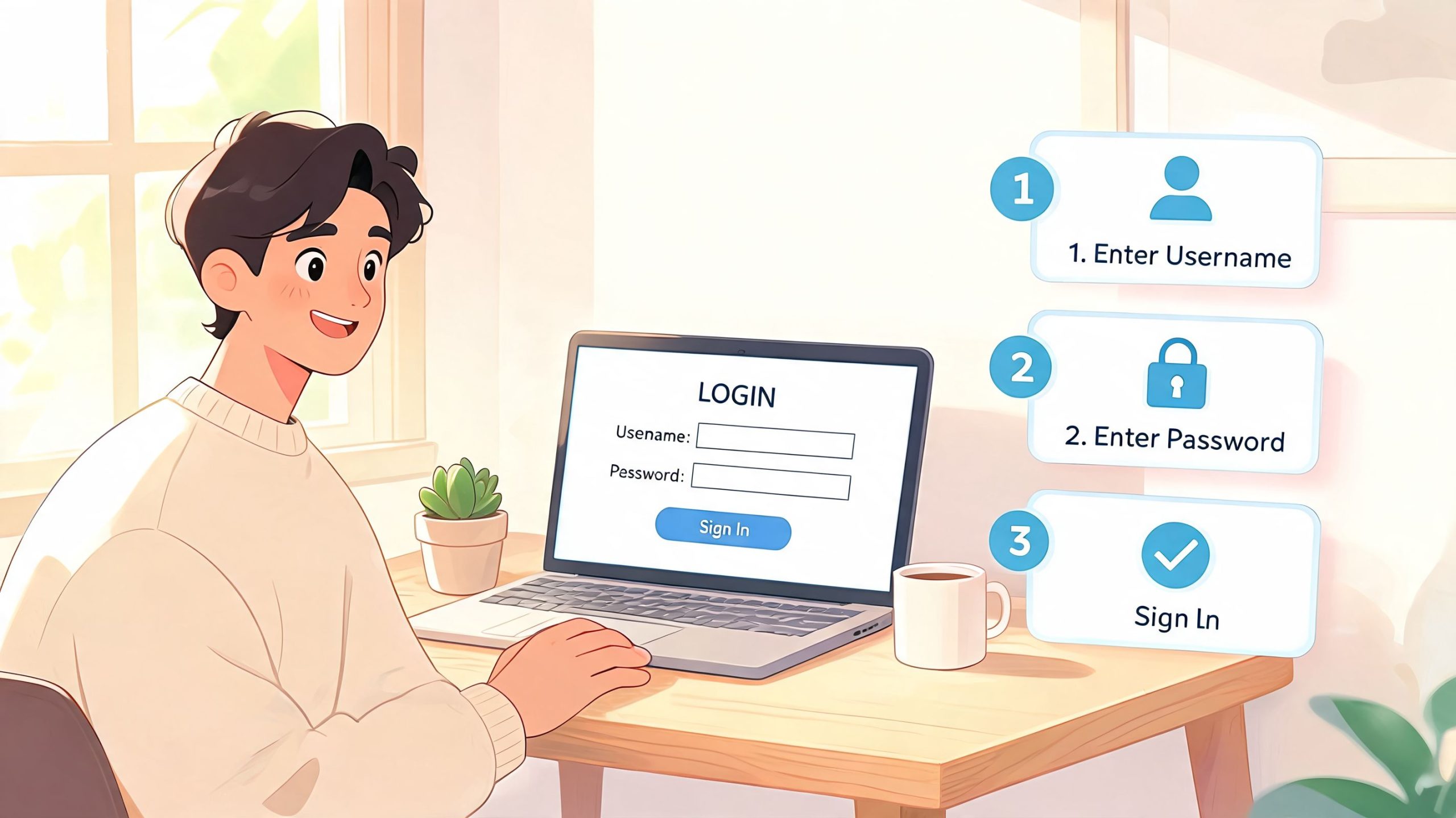
The fastest path is still the same three-step process.
- Go to the login page at lms.myedukator.com/login
- Enter the email address you used when you registered
- Click LOGIN after entering your password
That gets most returning students into the dashboard right away.
Florida drivers use online traffic school at a huge scale. In 2023, over 1.2 million Florida drivers enrolled in state-approved defensive driving courses, and completion rates for approved providers exceed 95%. Many users begin within minutes of signing up, which tells you the system is built for speed and convenience, not a long setup process (Florida defensive driving course enrollment data).
What first-time students should expect
If this is your first login, you may need to finish account setup before the dashboard opens fully. That usually means confirming the information you entered when you registered and creating a password you’ll remember later.
A lot of confusion starts here because students mix up registration with login. Registration is the one-time setup. Login is what you do every time after that.
Practical rule: Use the same email you used at checkout. Most login problems happen because students try a different email address than the one tied to the course account.
If you’re still choosing a course, make sure you’re using a Florida online defensive driving course that clearly explains the login process, account recovery, and certificate steps.
Why the login matters
A defensive driving course login isn’t just a gate to the lessons. It’s how the system connects your identity, your course progress, and your completion record.
That matters when you’re trying to finish a BDI course on time and make sure your result is properly recorded.
Creating and Activating Your Course Account
You paid for the course, open the login page, and expect to start in a minute. Then the site asks for a citation number, sends a verification email, or says your account is not active yet. That can feel like a wrong turn. In most cases, it just means setup is not finished.
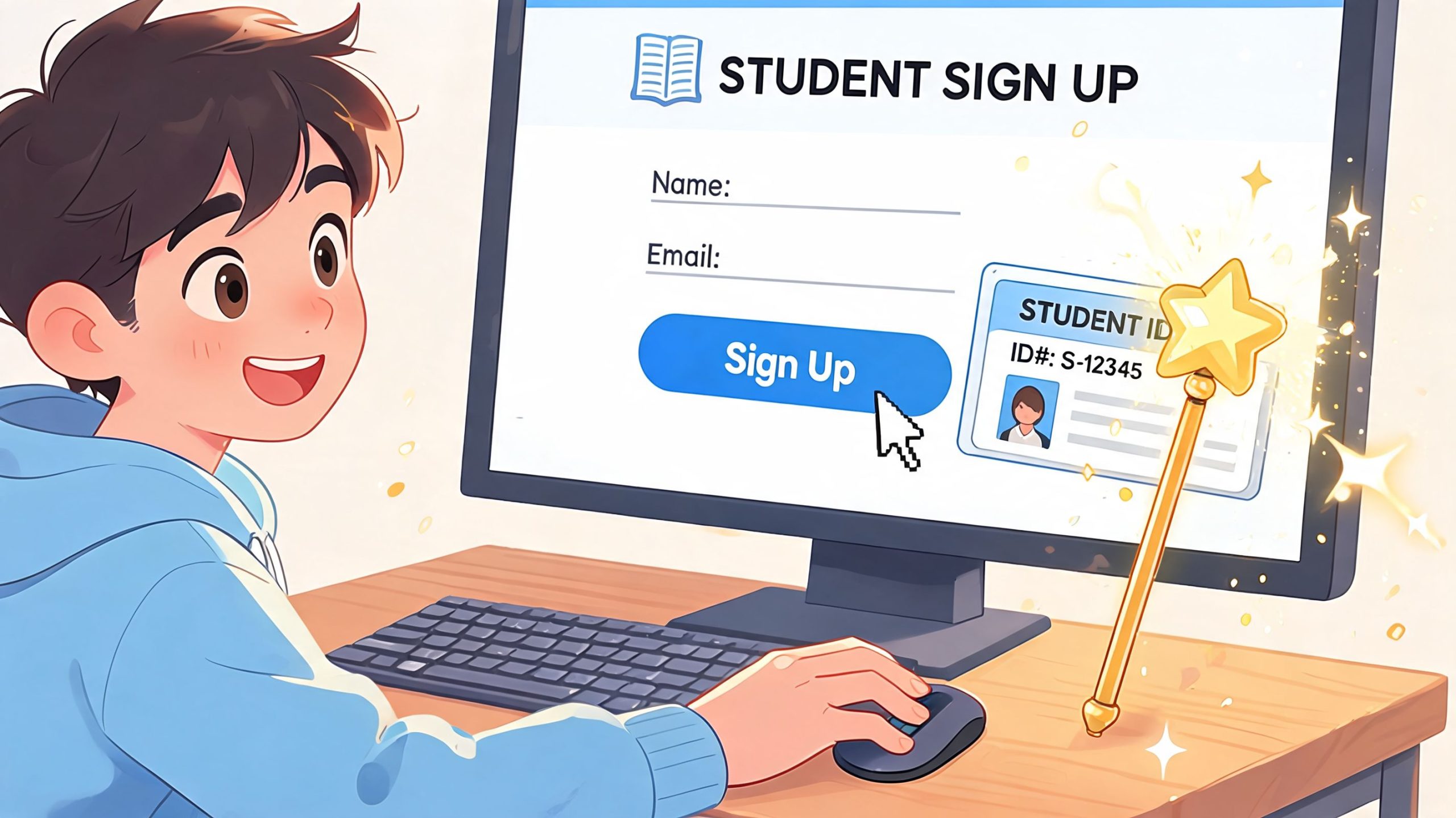
Creating the account and activating it are two separate steps. Registration gives the course provider your details. Activation confirms that the account belongs to you and is ready to track your progress, quiz results, and final certificate later.
Enter the right information the first time
Treat the signup form like a matching test. The course system compares what you type to the information tied to your citation or driver record. If one detail does not match, access can stall even if your payment was accepted.
Pay extra attention to these fields:
- Name: Use your legal name as it appears on your ticket or license.
- Date of birth: Follow the format shown on the form.
- Citation or case number: Copy it carefully, digit by digit.
- Email address: Use an inbox you can open right away, because activation messages often go there.
Florida students run into one more issue here. Some providers offer the course in more than one language, but the account email, verification screen, or support messages may still default to English. If that happens, do not assume the account is broken. Check for a language selector on the signup page or in the email, and keep a record of the exact email address you used so support can find your account faster.
Build a password you can find later
You will probably log in more than once. Pick a password that is secure but still easy for you to retrieve.
A passphrase works like a labeled house key. It should be hard for strangers to guess, but easy for you to recognize. A short sentence is easier to remember than a random string. Add upper- and lowercase letters, plus a number or symbol if the form requires it.
Then save it right away.
Store it in a password manager or a secure note before you leave the page. That one small step prevents a lot of repeat login trouble.
For students who want a flexible format, self-paced online courses make it easier to sign in, study for a while, sign out, and come back later.
If the platform sends a code by email or text, enter it and wait for the confirmation screen. Some students stop after creating the password and miss that final verification step.
A quick visual walkthrough can help if you prefer to see the flow before trying it yourself.
Activation problems that feel bigger than they are
If your account exists but will not open the course, the usual cause is an incomplete activation.
Check these places first:
- Your inbox for a confirmation or activation email
- Your spam or junk folder
- Your text messages for a verification code
- The original checkout email for the correct login link
- Any on-screen prompt asking you to confirm your identity
If the site keeps sending you back to the login page, return to the email address you used during enrollment. Look for any message asking you to verify the account. If you enrolled on a phone and the email link will not open correctly, try the same link on a laptop or copy the code manually into the activation screen.
Once activation is complete, the rest of the course process usually gets much easier. Your progress can be saved correctly, your identity is attached to the course record, and your certificate is easier to retrieve at the end.
How to Resume Your Defensive Driving Course
You come back after dinner, open the course, and expect to be dropped right into the next lesson. Instead, you land on the dashboard. That usually means your progress is still saved. You just need to reopen the next section.
Returning to a defensive driving course works a lot like reopening a streaming show. The platform remembers what you already finished, but it may not always place you on the exact screen you saw last time. What matters is your course record, not the first page you see after login.
The normal return path
Use the same account details you used when you first enrolled and activated the course.
- Open the same login page
- Enter the same email and password
- Sign in to your dashboard
- Select Resume Course, Continue, or the next unfinished lesson
Many course sites make this button easy to spot. It is often near your progress bar or under your course title.
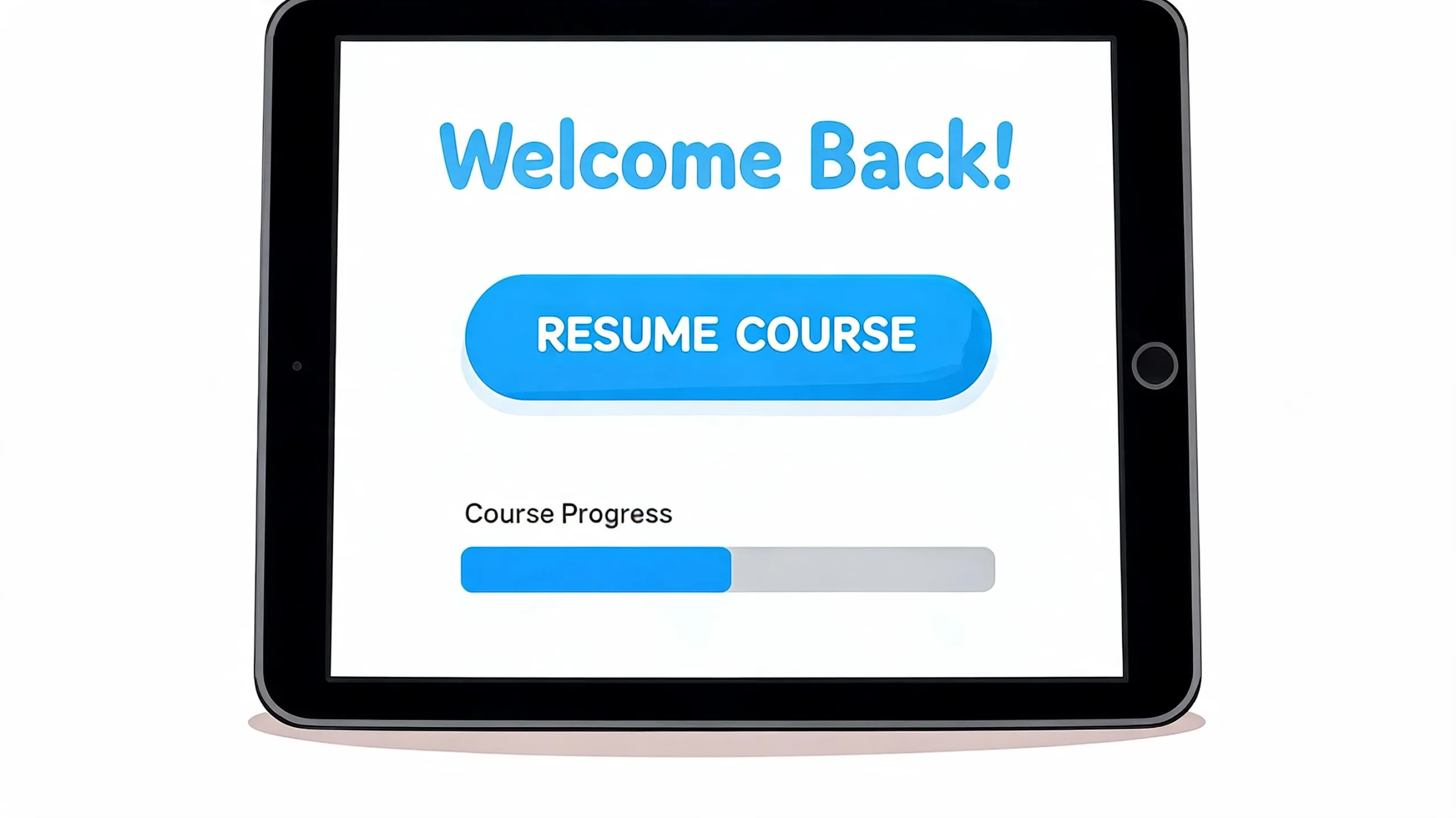
Your place in the course is usually saved automatically, so logging out for lunch, work, or errands shouldn’t erase what you’ve already finished.
If the course doesn’t reopen where you left off
Start by checking your progress markers. Those markers are the clearest sign that your completed work is still attached to your account.
Look for:
- A progress bar showing how much of the course is done
- A continue button on the dashboard
- Completed checkmarks next to finished sections
- Lesson titles that show where the next unfinished part begins
If those markers are there, your progress is usually safe. The system may want you to click back into the next lesson yourself.
A second common point of confusion is logging in from a different device or browser. Your course history is usually tied to your account, not the phone or computer you used first. Still, the layout can look different on mobile, tablet, or desktop, and language settings may also change what buttons are called. In Florida, that matters more than many students expect. A returning student may see Continue in English on one device and a translated version on another.
If the dashboard looks unfamiliar, slow down and match the course title, your name, and your progress before clicking around. That simple check can save time and help you reach the certificate stage later without extra support requests.
Solving Common Defensive Driving Login Problems
You sit down to finish your Florida traffic school course. The password looks right. The page reloads. Nothing opens.
That kind of login problem is frustrating, but it usually has a short path to a fix. The trick is to test one thing at a time so you do not accidentally create a second problem while chasing the first.
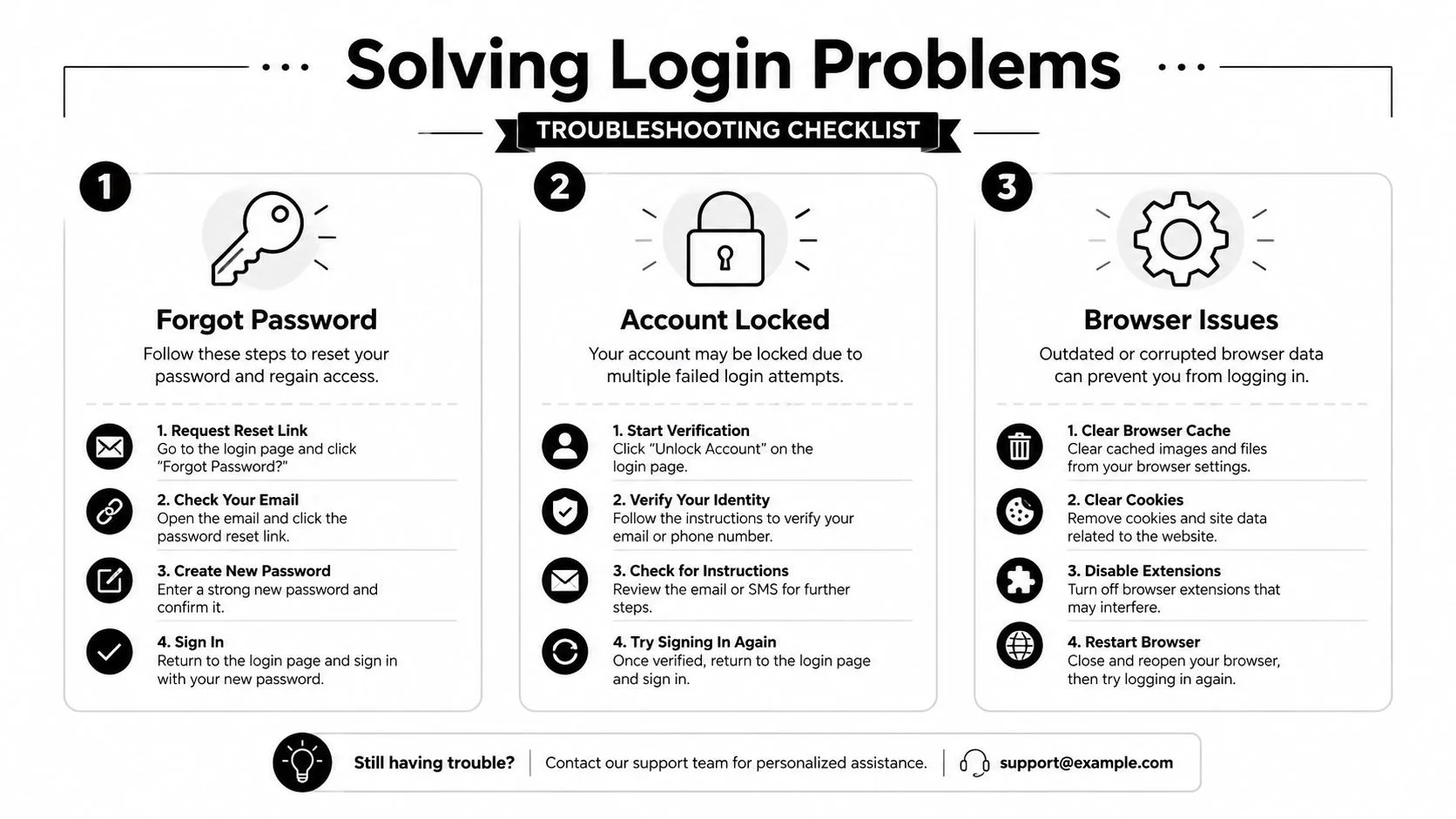
Forgot your password
Start with the simplest check. Password mistakes are common, especially if you signed up days ago and are now returning to finish the course and later retrieve your certificate.
Use this order:
- Click Forgot Password
- Enter the same email address you used when you activated the account
- Check your inbox
- Check your spam or junk folder
- Open the newest reset email
- Create a new password
- Return to the login page and sign in again
If you requested more than one reset, use the latest email only. Older reset links may no longer work after a newer one is sent.
A small detail causes a lot of confusion here. Students sometimes enter a second email address by habit, such as a work email on one day and a personal email on another. If the reset message never shows up, pause and confirm which address was used at signup.
Browser and device issues
Sometimes the account is fine, but the browser is holding onto old session data. A login page works a bit like a sticky note left on your screen. If the note is outdated, the site may keep sending you back to the same broken step.
Try these fixes:
- Clear cache and cookies: This removes old login data that can trap you in a loop.
- Open a private or incognito window: This gives you a clean test without old saved sessions.
- Try a different browser: If one browser stalls, another may open the course normally.
- Turn off a VPN: Some course systems flag unusual location signals.
- Update your mobile browser: Older mobile versions can hide buttons or break lesson windows.
Locked out or stuck in a loop
If the login seems accepted but never opens the course, use a simple test.
| Problem | What to try |
|---|---|
| Password accepted, page reloads | Close all course tabs, reopen one fresh tab, and sign in again |
| Reset email doesn’t appear | Check spam, then confirm you are using the original registration email |
| Dashboard loads but course won’t open | Select Resume Course from the dashboard instead of using an old bookmark |
| Login works on phone but not laptop | Clear browser data on the laptop or switch browsers |
| Buttons appear in the wrong language or look unfamiliar | Change the language setting first, then confirm the course title and your account name |
That last issue matters more in Florida than many students expect. A platform may keep the same account, but the labels can change after a browser update, device switch, or language setting change. If Spanish is easier for you to follow, using a Florida traffic school course in Spanish can remove a lot of guesswork during login and later when you return for completion records.
When to contact support
Contact support after you have reset the password, confirmed the correct registration email, and tested a clean browser session.
Send the email address used to enroll, your full name, and any order number or receipt you still have. If possible, include a screenshot of the error page and note whether you are trying to log in, resume the course, or get your certificate. That helps support identify where the login process is breaking and gets you back on track faster.
Multilingual Access and Mobile-Friendly Logins
You sign in on your phone during a lunch break. The page loads, but the buttons are in a language you did not expect, and the course looks different from last time. That can feel like the wrong account. In many cases, it is the right account with the wrong language setting or a mobile view that is hiding part of the page.
That problem comes up often in Florida because many students prefer to study in Spanish or switch devices during the course. The account usually stays the same across languages. What changes is the label on the buttons, menu items, and course text.
How language selection usually works
Start by looking for a language selector on the login page, dashboard, or course header. It may appear as English, Español, or a small globe icon.
After you change the language, use the same email and password you already set up. You do not need a separate login just because you want the course in Spanish. The language choice changes how the course is displayed, not how your account is stored.
If Spanish is easier to follow, a Florida traffic school course in Spanish can make each step clearer, from sign-in to course completion to finding your records later.
Choose the language first. Then sign in with your usual account details.
Mobile login tips that save time
A phone screen works like a smaller dashboard. Some parts stay hidden until you tap the menu icon, scroll farther down, or turn the screen sideways.
Try these quick fixes:
- Open the course in your regular browser: Saved previews in email apps or search results can open an outdated page.
- Rotate to horizontal view if a button seems missing: Some dashboards display better in horizontal view, which is a simple trick that often works.
- Zoom out if the page looks cut off: A magnified mobile view can hide the sign-in or resume button.
- Use the current login page instead of an old bookmark: Old links can send you to a page that no longer matches your account session.
Certificate access on the go
Mobile access matters at the end of the process too.
After you finish the course, return to the dashboard on the same device and look for your completion status, certificate button, or download link. If the certificate opens as a PDF, save it to your phone right away and email yourself a copy. That gives you a backup if you need to show proof later and do not want to search for the file again.
Final Steps After Course Completion
Finishing the lessons isn’t the end of the process. You still want to make sure your completion is easy to find and ready when you need it.
Start by returning to your dashboard. Look for a completion notice, a certificate button, or a download link.
Where to find your certificate
Most platforms place the certificate in the same account area where you resumed the course.
Check for labels like:
- Certificate
- Completion Record
- Download PDF
- View or Print Certificate
If available, save a copy to your phone and your computer. Emailing a copy to yourself is also a smart backup.
For drivers who need a downloadable record, an online driving certificate page can help you understand what that final document usually looks like and how it’s used.
Reporting and record follow-up
In many Florida traffic school workflows, the school handles reporting to the state on the student’s behalf. That means you usually don’t need to mail paperwork yourself, but you should still keep your certificate for your records.
You may also want to keep it if your insurer asks for proof when reviewing a discount request.
Save the certificate even if the school reports completion for you. It gives you something immediate to show if a court clerk, insurer, or employer asks for confirmation.
If something looks wrong after completion
Sometimes students finish the final module but don’t realize there’s one last quiz, acknowledgement, or confirmation click.
If the dashboard doesn’t show completion, log out, sign back in, and check for any unfinished item. A single unchecked step can keep the certificate from appearing.
Your Defensive Driving Course Login Questions
What if I registered with the wrong email address
Contact support as soon as you notice it. If the email is wrong, password resets and course notices may go to the wrong inbox, so it’s best to fix that before trying repeated logins.
Can I switch between my phone and laptop
Usually, yes. Most course platforms are built so you can sign in from different devices and continue from your saved dashboard progress.
How long do I keep access to the course
Course access depends on the provider’s enrollment rules. If you’re unsure, check your registration email or dashboard notices for the access window and completion deadline.
What if I can log in but can’t find the course
Open the dashboard and look for a button such as Resume Course or Continue. If the dashboard is empty, contact support and ask them to confirm that your enrollment is attached to the same email you’re using to log in.
If you want a Florida-approved course with flexible online access, multilingual options, and support when login issues come up, BDISchool is a practical place to start.